

Organizations
Manage separate Blueputto workspaces with organization switching, settings, members, and subscriptions, plus start with a 14-day trial and templates.
 Grzegorz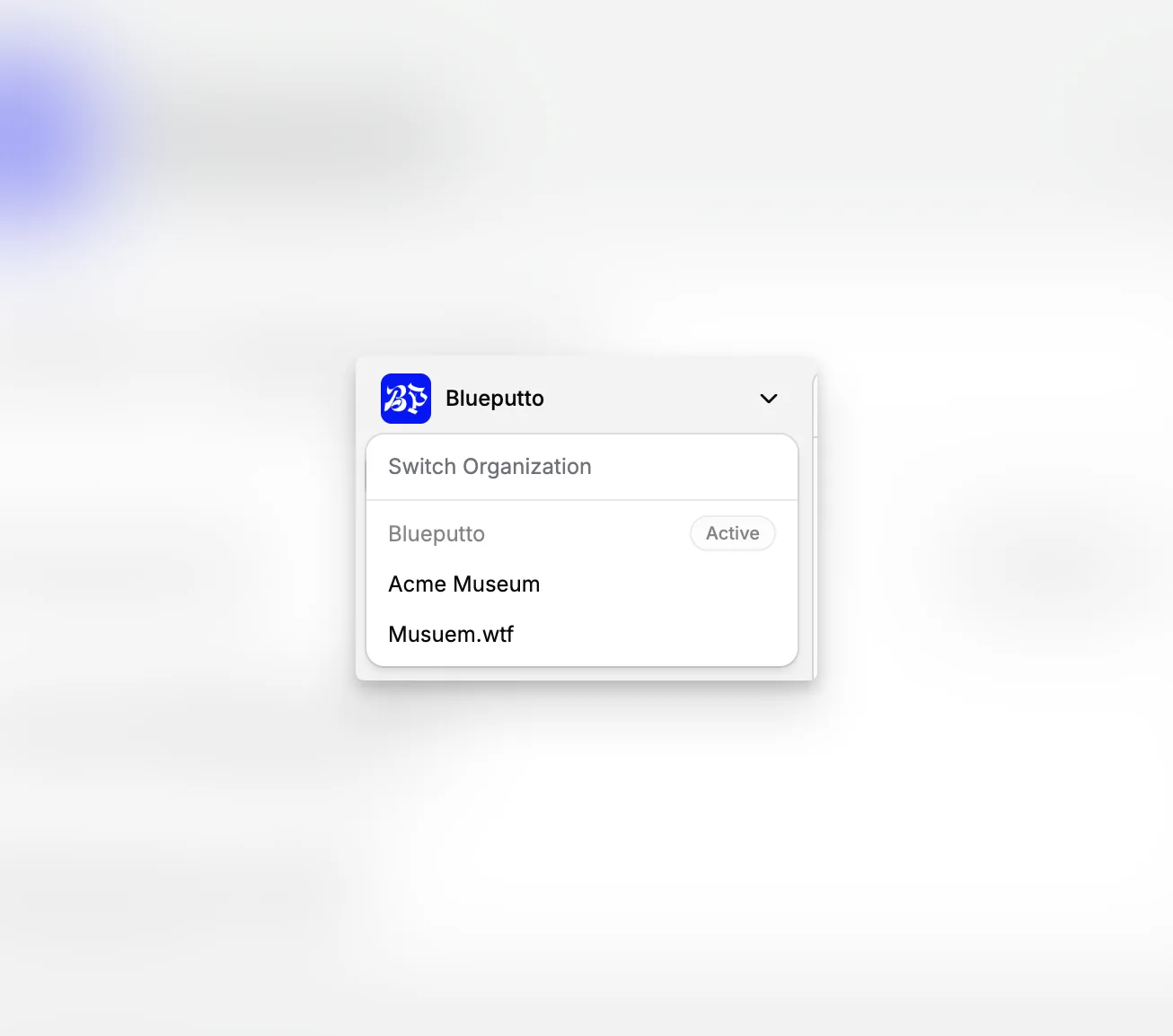
An organization is a shared workspace in Blueputto. Its objects, documents, members, settings, and subscription stay separate from every other organization you belong to.
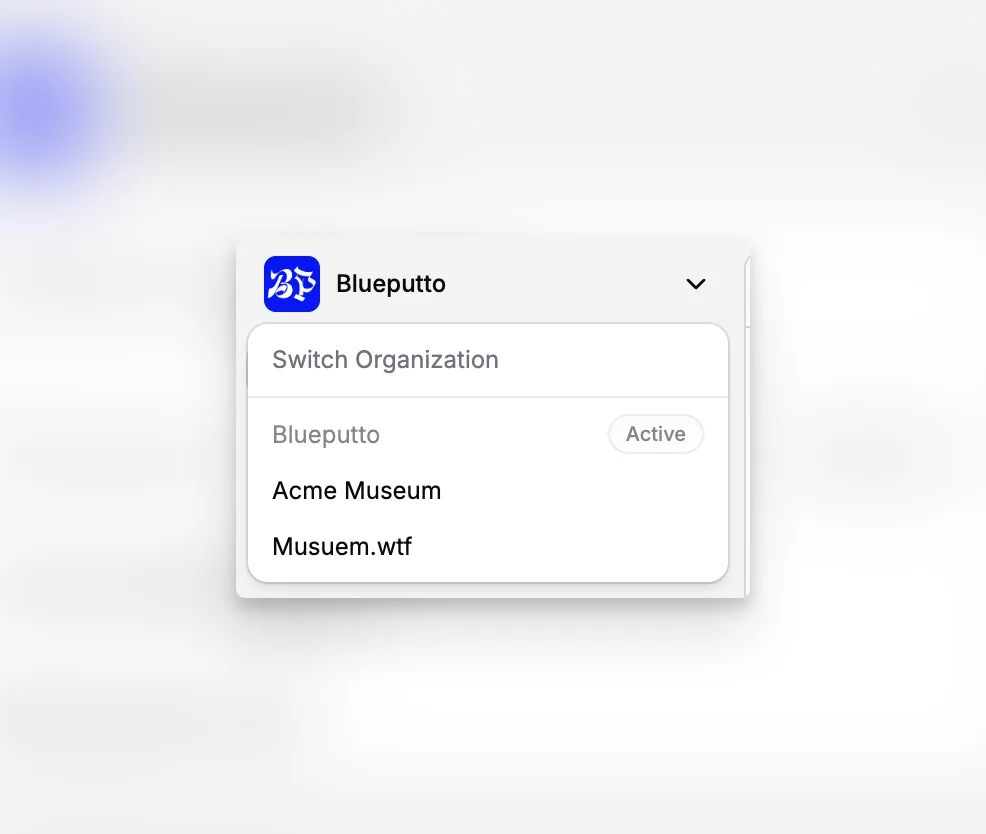
Switch to the workspace you need
Use the organization switcher when you work with more than one team or institution. Changing the active organization updates the content and settings you see throughout the app.
Your personal name, picture, language, and theme remain part of your own Account and Preferences.
Present a clear organization identity
The General settings page shows the current plan and lets authorized members update the organization's name and logo. These details help people recognize the workspace in navigation and shared areas.
Create, join, leave, or close
The Organizations page lists all workspaces connected to your account. From here you can create another organization, switch to it, or leave one you no longer work with.
Owners can also delete an organization when it is safe to do so. A workspace with an active paid subscription cannot be deleted, and you cannot delete the last organization you own.
Begin with a useful starting point
A new organization includes a 14-day Scale trial and ready-made examples such as folders, collections, labels, categories, statuses, templates, a design, and data models.
These starting items follow the organization's language and can be renamed, expanded, or removed as your own structure takes shape.