Media and Attachments

Blueputto’s Media and Attachments feature keeps files, images, and template assets tied to records, documents, and workflows for context and reuse.

GrzegorzGrzegorz
Media and Attachments

Media and Attachments is the record-level file layer in Blueputto. Instead of pushing uploads into a disconnected global library first, the app keeps most media close to the document, item, or template workflow where that file is actually needed.

That makes the feature feel operational rather than archival. Files are attached to the work in progress, visible in context, and reused where the surrounding workflow needs them.

Documents and items both have file attachment panels

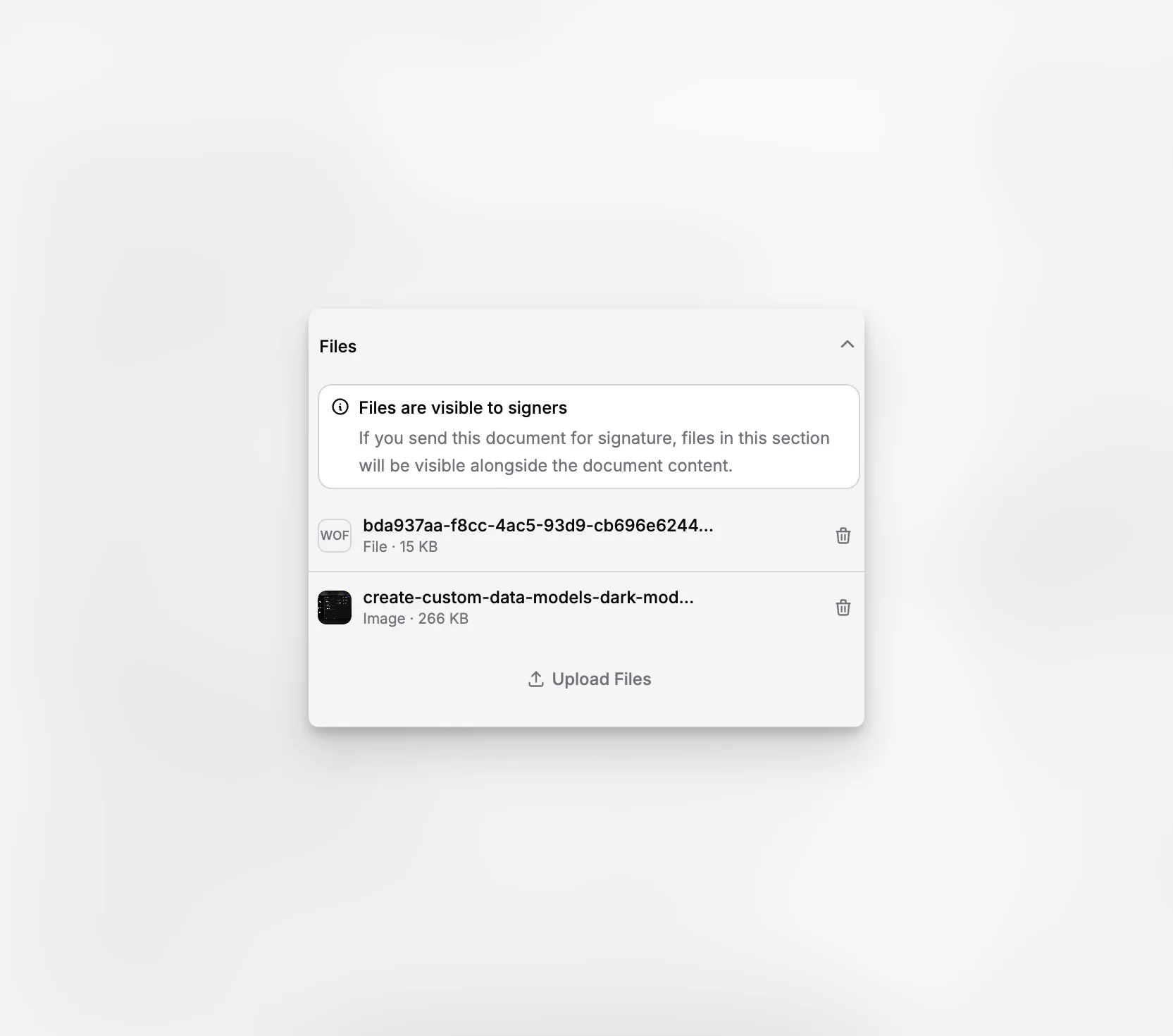
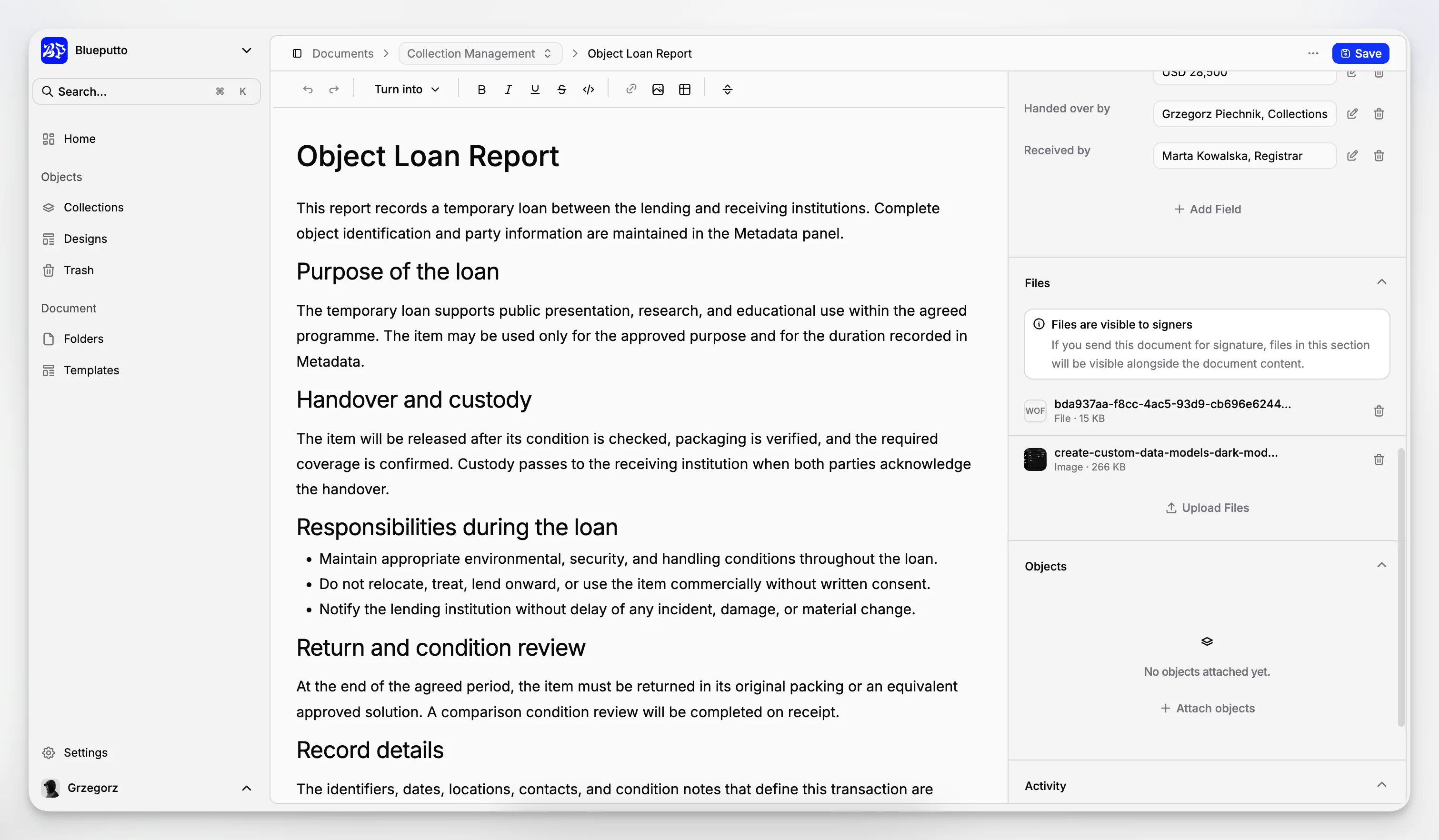
Blueputto uses the same practical file model across document and item records. In the current implementation, both workspaces include a dedicated files section where teams can:

  • upload files,

  • review already attached files,

  • preview attached images,

  • open files directly,

  • and remove files when they no longer belong on the record.

The attachment panel is intentionally broad in what it can represent. The UI classifies uploads into common categories such as:

  • PDF,

  • image,

  • video,

  • audio,

  • spreadsheet,

  • document,

  • and generic file.

Uploads also show basic file context such as file size, which keeps the panel useful for day-to-day review instead of acting like a blind attachment bucket. In the current implementation, teams can upload up to ten files at a time through this shared panel.

Blueputto document attachments panel showing uploaded files with previews and file metadata.

Images are first-class in content, data fields, and templates

Blueputto does not treat images as a special case that lives outside the product. Image uploads appear in several important workflows.

Inside Document Editor, users can upload inline images directly into the rich text content. Inside Items, uploadable image fields can store image URLs as part of structured item data, with replace and remove controls built into the field itself.

That matters because those item images are not only stored for reference. They can also feed directly into Item Templates through dynamic bindings, where a template image layer can pull the right asset from the current item field.

Template editing adds another media layer on top of that. The visual template editor supports uploaded image layers and uploaded background images, which become part of the template asset set once the template is saved.

Blueputto item image upload field and template asset workflow for reusable visual outputs.

Asset lifecycle stays tied to workflow context

The useful part of Blueputto's media model is not only that files can be uploaded. It is that their lifecycle stays attached to the record or template that uses them.

For documents, attached files become part of the signing context. If a document is sent for signature, those files are shown alongside the document content for signers. At the same time, the document content, core properties, and files become read-only so the signing snapshot stays stable.

For templates, uploaded images do not stay as loose temporary objects forever. Background assets, element images, and generated thumbnails are stored as part of the template itself. If a template is permanently deleted, the current implementation also removes the generated thumbnail and uploaded template images tied to it.

That keeps media from becoming a detached afterthought. Files, images, and template assets remain part of the real operational lifecycle around documents, items, exports, and signatures.

Related

The best way to understand is to try

Explore Blueputto live and see how it helps museums manage collections, preserve archives, and streamline documentation.