
Activity
Search Blueputto document activity or focus on one document with a folder-grouped picker to see who changed what and when.
 Grzegorz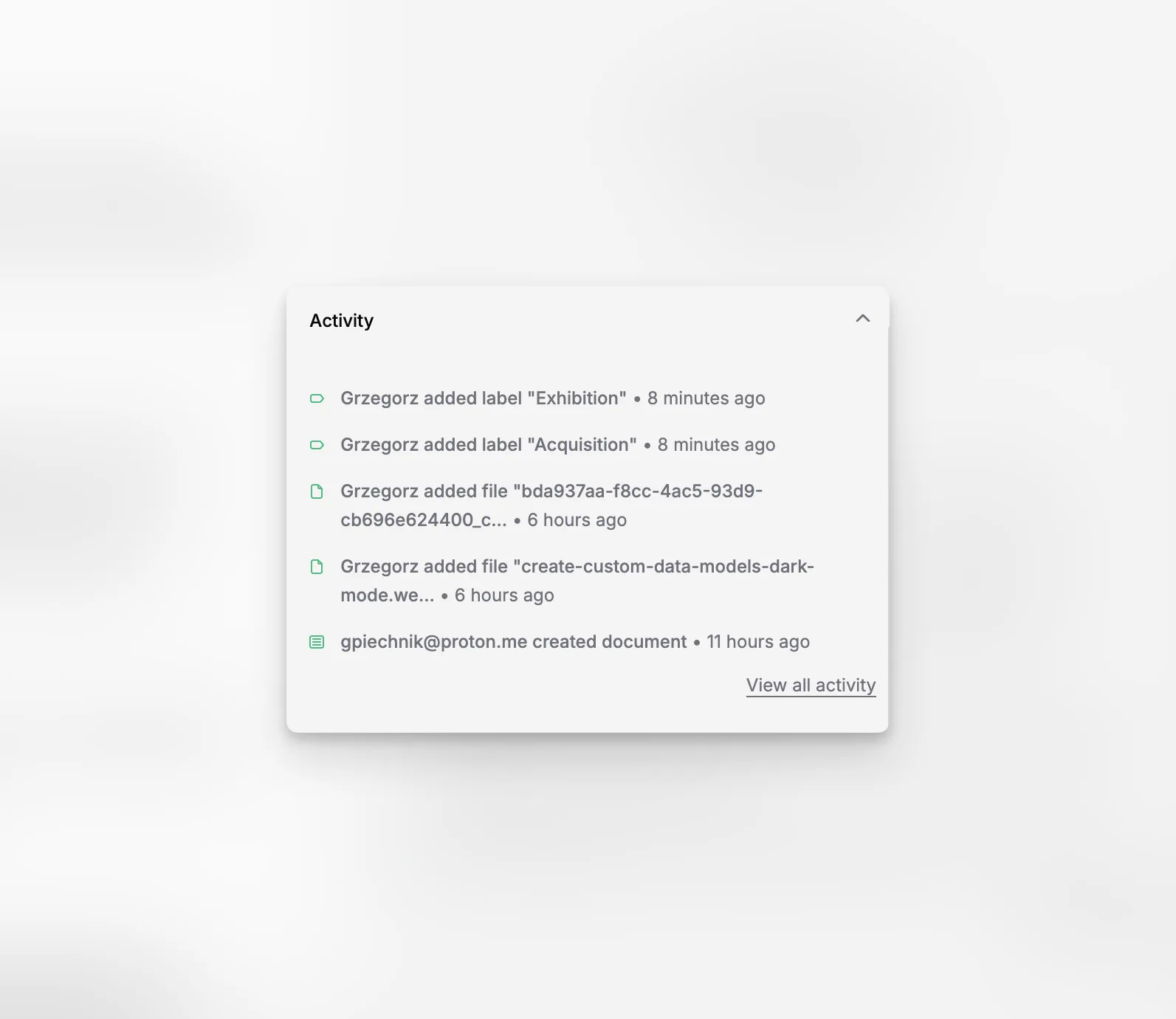
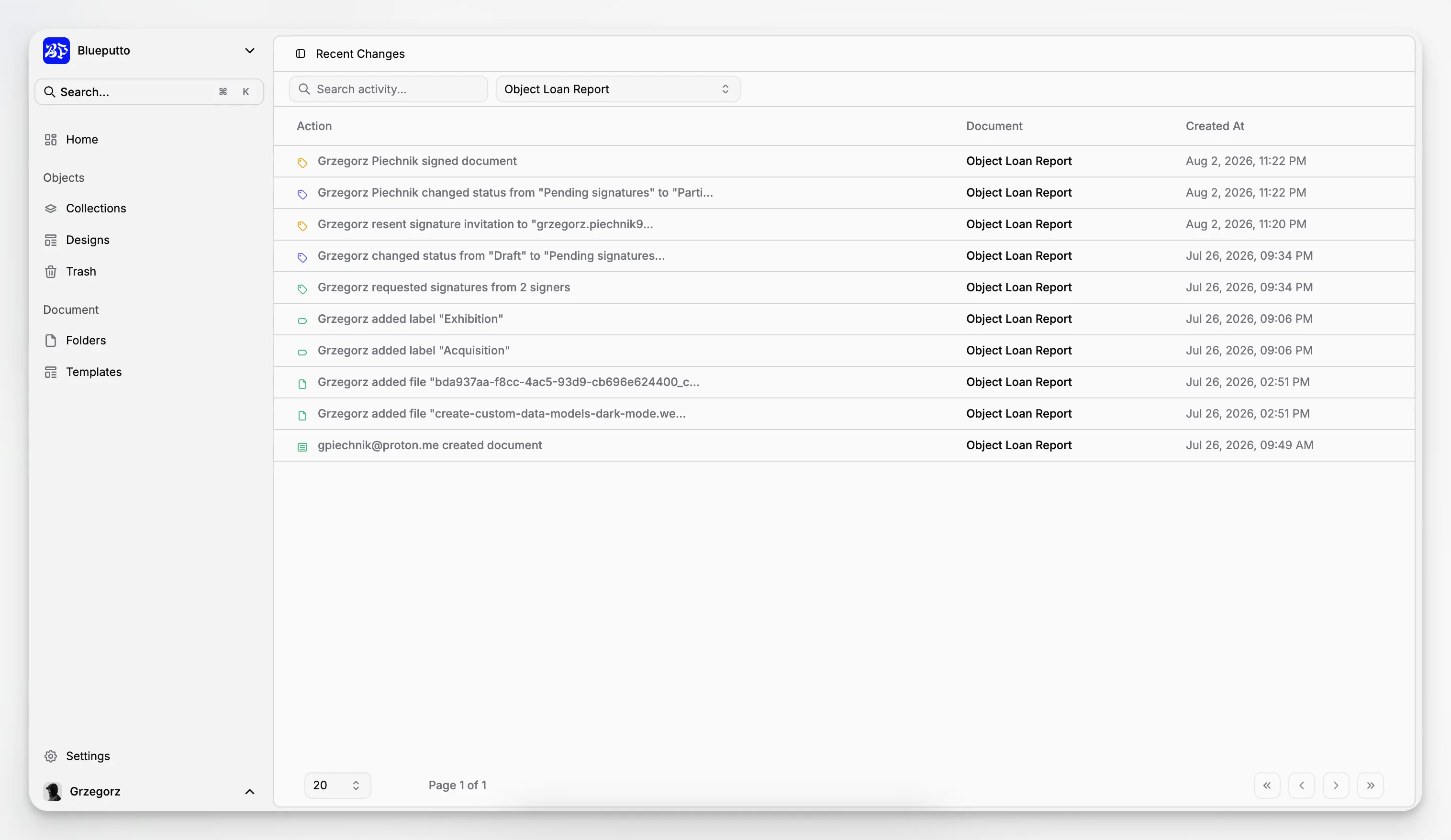
Activity helps everyone understand what has been happening in the organization. The full page is called Recent Changes and shows who changed a document, what they changed, and when it happened.
Home gives you a quick preview. Recent Changes is the place to look when you need the fuller story.
Find the change you are looking for
Use search and the document picker to focus the feed before paging through results. Search matches the activity description, the person who made the change, and the document name.
choose All documents to keep the organization-wide view,
select one document to see only its activity,
browse documents grouped by folder, plus a Without folder group when applicable.
The document picker keeps a long workspace easier to scan: documents are alphabetized within their folder group, and documents whose folder is no longer listed remain available under Other folders. Select a document name in the table to open it directly.
Read changes in everyday language
Every event combines a clear action description with a recognizable icon. The feed can capture changes to titles, document content, folders, labels, authors, statuses, data models, hero images, publish dates, custom fields, files, signatures, and objects.
changed a title or edited document content,
moved a document to another folder or changed its status,
updated an author, label, hero, file, signature, object, or custom field.
This makes Recent Changes useful to editors, coordinators, and managers—not only administrators—because the log stays readable even when the underlying work is detailed.
Move from overview to detail
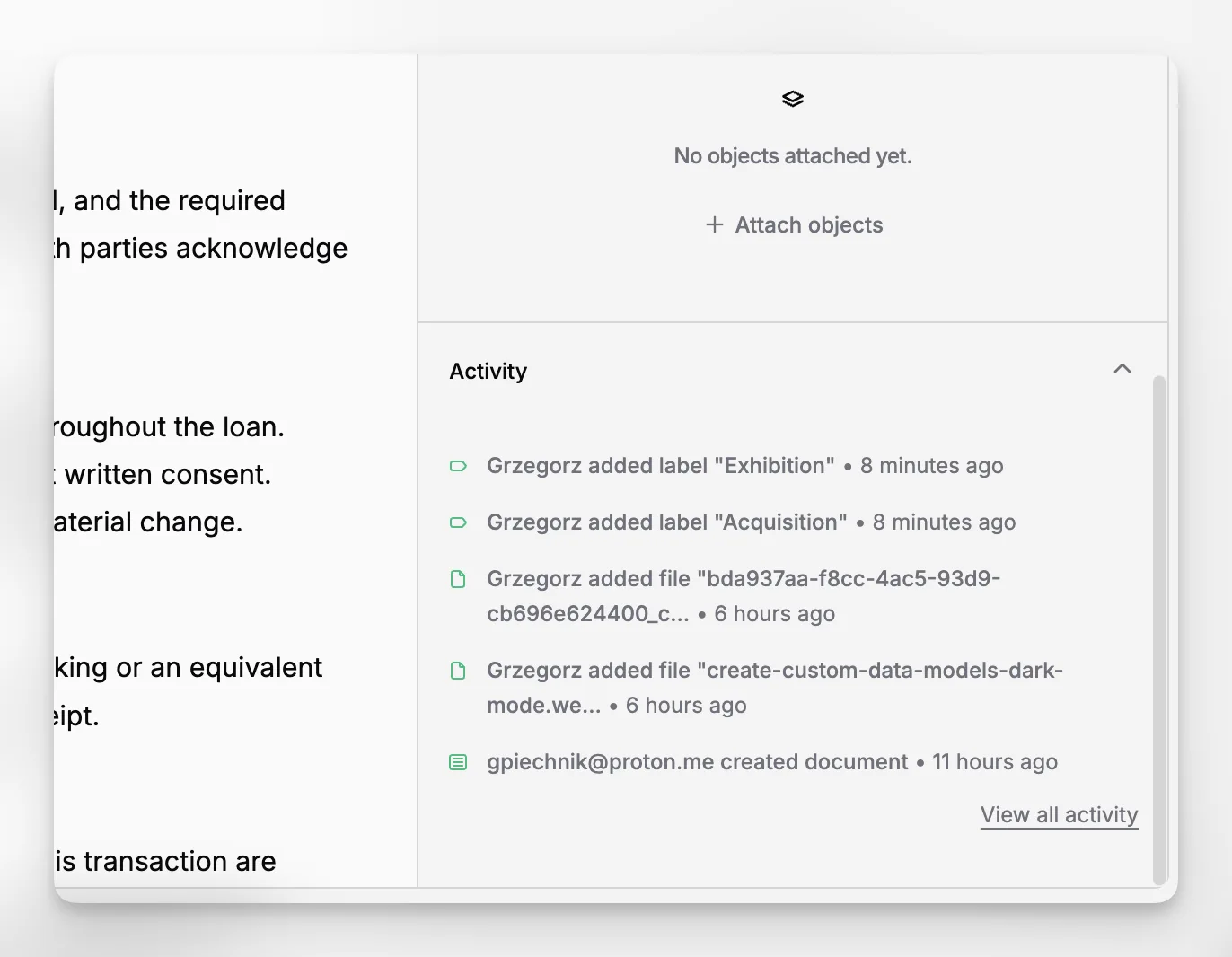
Use Home when you only need a quick pulse, Recent Changes when you want to search work across the organization or focus on one document, and the activity section inside a document when you want the latest changes without leaving that record. Opening Recent Changes from a document keeps that document selected.
Together, these views help teams stay informed without adding another reporting routine.